Why You Look Away From the Camera (And How to Fix It)
You've seen yourself on a video call recording. Something feels off. You look distracted, shifty, maybe even untrustworthy. Then you realize: you're never actually looking at the camera.
It's not your fault. The way video calls are designed makes natural eye contact almost impossible. But once you understand why it happens, fixing it is surprisingly simple.
The Science: Why Eye Contact Matters So Much
Before we fix the problem, let's understand why it matters.
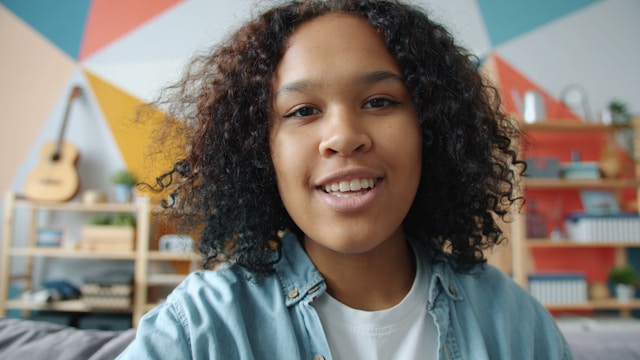
Eye contact triggers a response in the human brain. When someone looks directly at us, we perceive them as more confident, trustworthy, and engaged. Studies show that speakers who maintain eye contact are rated as more competent and credible — even when saying the exact same words.
On video calls, this effect is amplified. The camera is your only connection to the other person. When you look away, even briefly, it breaks that connection. The other person feels it immediately, even if they can't articulate why.
Three seconds. That's roughly how long you can look away before people start to notice and form negative impressions. On video, it's even less forgiving because your face fills their entire screen.
The Real Reasons You Look Away (It's Not What You Think)
Most advice about video call eye contact is useless: "Just look at the camera!" Thanks. Very helpful.
The problem is that looking away isn't a habit you can simply break. It's a response to real problems with how video calls work.
Reason 1: Your Camera and Screen Are in Different Places
This is the fundamental problem nobody talks about.
When you're on a Zoom call, you naturally look at the other person's face — which is on your screen. But your camera is above your screen. So from their perspective, you're looking down, not at them.
The geometry is broken. To make eye contact with your camera, you have to stop looking at the person you're talking to. It's an impossible choice.
Reason 2: You're Reading Notes or Thinking
You have talking points for this meeting. Maybe a script for your presentation. Or you're just trying to remember what you wanted to say.
So you glance at your notes. Your eyes move to the second monitor. You look down at your desk. Each glance breaks eye contact with the camera.
Even if your notes are on screen, they're not where your camera is. Reading and eye contact become mutually exclusive.
Reason 3: You're Looking at Yourself
Admit it. You look at your own video feed. Everyone does.
You're checking your hair, your background, your lighting. You're watching yourself talk. It's distracting, and it pulls your eyes away from the camera.
Reason 4: Screen Sharing Eliminates Your Reference Point
When you share your screen, the other person's video shrinks to a tiny thumbnail or disappears entirely. Now you have nothing to look at near your camera.
You end up staring at your slides or your demo, which means looking at the center or bottom of your screen — far from the camera at the top.
Reason 5: Cognitive Load
When you're thinking hard about what to say, your eyes naturally move. Looking up and to the side while processing information is a universal human behavior.
On video, this reads as distraction or evasion. But you're just thinking.
How to Fix It: Practical Solutions That Actually Work
Now that we understand the real causes, here are solutions that address each one.
Fix 1: Move Your Video Call Window to the Top of Your Screen
Simple but effective. Drag your Zoom/Meet/Teams window to the very top of your screen, directly below your camera. When you look at the other person's face, you're now looking close to the camera.
Not perfect, but a significant improvement over having the window in the center or bottom of your screen.
How to do it:
- Resize the video call window to be smaller
- Drag it to the top center of your screen
- Position the other person's video feed as close to your camera as possible
Fix 2: Hide Your Self-View
Most video apps let you hide your own video feed. Do it. You don't need to see yourself, and it removes one major source of distraction.
In Zoom: Right-click your video → "Hide Self View" In Meet: Click the three dots on your tile → "Remove from screen" In Teams: Right-click your video → "Hide me"
You'll feel weird for the first few calls. Then you'll wonder why you ever had it on.
Fix 3: Use an External Webcam at Eye Level
Laptop cameras are above your screen, creating that awkward downward gaze. An external webcam mounted at eye level (or even below your monitor, angled up slightly) creates more natural eye contact.
Some people mount webcams directly on their monitor, centered at the top. Others use a small tripod positioned just above their screen.
Fix 4: Put Your Notes Where Your Camera Is
This is the game-changer for anyone who needs to reference notes during calls.
The problem isn't that you have notes — it's that your notes are in a different place than your camera. When you read, you break eye contact.
The solution: put your script directly below your camera lens.
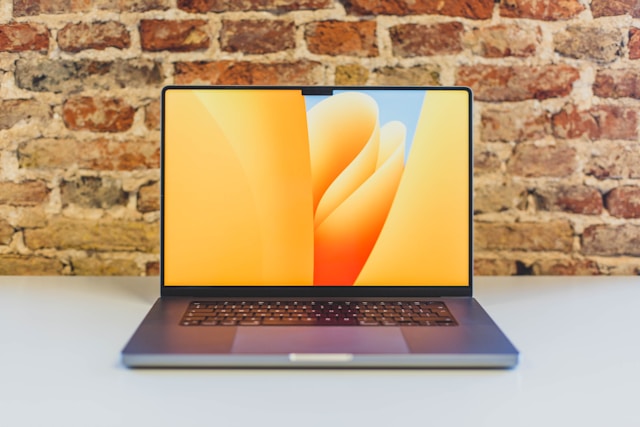
On a MacBook, this means the notch area. Apps like Notchie are designed exactly for this — a teleprompter that sits in your notch so you read while looking at the camera.
If you're on an external monitor, position a small notes window at the very top of your screen, as close to the webcam as possible.
Fix 5: Practice the "Camera Glance" Technique
You don't need to stare at the camera 100% of the time. That's actually creepy. Natural conversation includes looking away occasionally.
The technique: Look at the camera for key moments, then allow yourself to look at the screen normally.
Look at camera for:
- First 5 seconds of speaking (establishes connection)
- Making an important point
- Asking a question
- Listening to someone else speak
- Your closing statement
Okay to look at screen for:
- Casual conversation
- Thinking through a response
- Taking notes
- Watching a screen share
This feels more natural than forcing constant camera contact.
Fix 6: Use Speaker View, Not Gallery View
In gallery view, your eyes scan across multiple faces. In speaker view, you focus on whoever is talking — one face, one location.
Position that speaker view window at the top of your screen, near your camera. Now you're looking at one person and maintaining better camera alignment.
Fix 7: Externalize Your Thinking
Remember how cognitive load makes your eyes wander? Reduce the load by externalizing your thoughts.
- Write down your key points before the call
- Have a simple agenda visible
- Use a teleprompter for important presentations
- Take brief notes during the call (looking down intentionally is better than eyes darting randomly)
When you're not struggling to remember what to say, you naturally maintain better eye contact.
The Ultimate Setup for Perfect Eye Contact
If video calls are a big part of your job, here's the ideal configuration:
- MacBook or webcam at eye level — camera aligned with your eyes, not above or below
- Teleprompter in the notch area — notes visible without breaking eye contact
- Self-view hidden — remove the distraction
- Video window at top of screen — other person's face close to camera
- Voice-synced scrolling — if using a teleprompter, let it follow your voice so you're not manually controlling it
With this setup, you can read your entire script while appearing to make perfect eye contact. Your audience sees confidence and preparation. You feel calm because your notes are right there.
What About Screen Sharing?
Screen sharing creates a unique challenge. You're focused on your slides or demo, which are in the center of your screen. The camera at the top is completely forgotten.
Two strategies:
Strategy 1: Memorize Your Opening and Transitions
You don't need to memorize everything. Just know your opening line and transition phrases cold. Then you can look at the camera for those key moments and look at your content the rest of the time.
Strategy 2: Use an Invisible Teleprompter
Some teleprompter apps stay invisible during screen sharing. Notchie uses a specific macOS window level that Zoom, Meet, and Teams don't capture.
This means you can share your entire screen while reading talking points that only you can see. To everyone else, you're presenting slides. To you, your notes are right there below the camera.
Quick Fixes You Can Do Right Now
No apps needed. No hardware changes. Just do these before your next call:
| Problem | 30-Second Fix |
|---|---|
| Looking at yourself | Hide self-view in settings |
| Window too low | Drag video call to top of screen |
| Gallery view scanning | Switch to speaker view |
| Reading notes elsewhere | Move notes window next to camera |
| Forgetting to look at camera | Put a sticky note arrow pointing at your webcam |
That last one sounds silly. It works.
FAQ
Should I look at the camera all the time?
No. Constant unblinking eye contact is unnatural and uncomfortable. Aim for 60-70% camera contact during important moments, with natural glances away while thinking or listening.
Does screen position really make that much difference?
Yes. The difference between looking at the center of your screen versus the top of your screen is clearly visible to others. It's the difference between "engaged" and "distracted."
What if I need to read a long script?
Use a teleprompter positioned near your camera with voice-synced scrolling. Notchie is built for this — it sits in your MacBook notch and scrolls as you speak, so you maintain eye contact while reading.
I have an external monitor. Where should I put my webcam?
Top center of the monitor, or on a small tripod just above the monitor. Some people mount webcams below the monitor and angle them up — this creates a more flattering angle but can look unnatural if overdone.
Why do I feel so awkward looking at the camera?
Because you're looking at an object, not a person. It feels unnatural because it is unnatural. The trick is accepting that video calls require this artificial behavior, then practicing until it feels automatic.
Conclusion
Looking away from the camera isn't a character flaw. It's a rational response to the broken design of video calls — your screen and camera are in different places, your notes are somewhere else entirely, and your own face is distracting you.
The fix isn't "try harder to look at the camera." The fix is redesigning your setup so that looking at the camera becomes the natural thing to do:
- Move video windows near your camera
- Hide your self-view
- Put your notes where your camera is
- Use tools that make reading and eye contact compatible
Once your setup works with human nature instead of against it, eye contact becomes effortless.
You stop thinking about where to look. You just... look present.
Last updated: January 2025